
How does automatic renewal work?
The MitikLive app renews your Milanuncios listings one by one, automatically and sequentially. The process simulates the behaviour of a real user manually renewing each listing, but does so in a completely automated way.
Status of each listing
During the renewal process, each listing can have one of the following statuses:
The listing has been renewed successfully and has moved up to the top positions.
The listing was renewed recently and Milanuncios does not allow it to be renewed yet. It will be retried later.
There was a problem during renewal. This may be a connection error or a temporary issue with Milanuncios.
Start the renewal
To begin renewing your listings:
- Make sure you are in the "My listings" section of Milanuncios
- Wait for the app to detect your listings (you will see the counter at the top)
- Tap the green "Renew All" button
- A confirmation dialog will appear showing:
- Total number of listings
- Listings pending renewal
- Estimated time
- Tap "Start" to begin
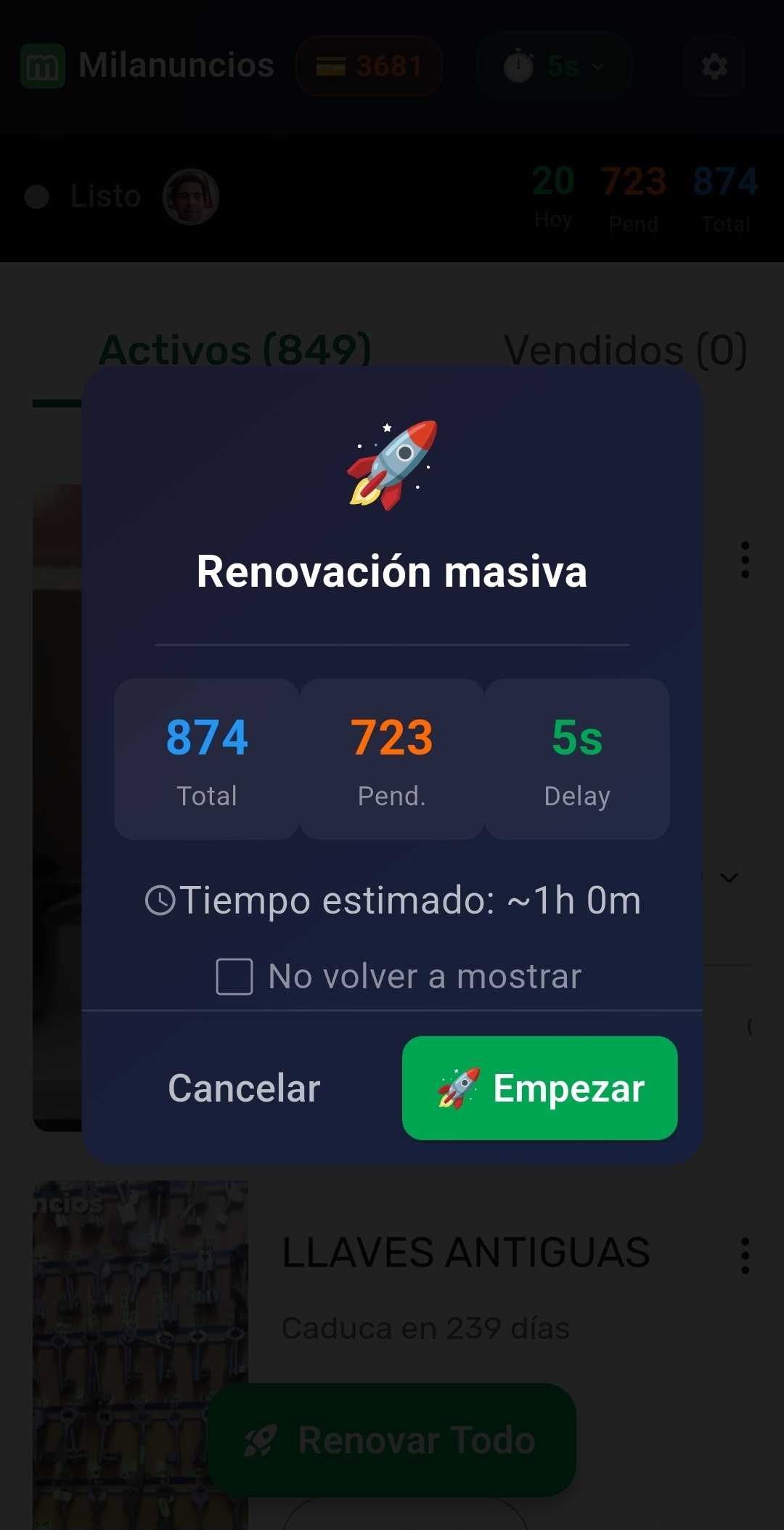
Confirmation dialog showing statistics and estimated time
Tip
You can check "Don't show again" in the confirmation dialog if you prefer the renewal to start directly without asking.
During the renewal
While the app is renewing your listings, you will see:
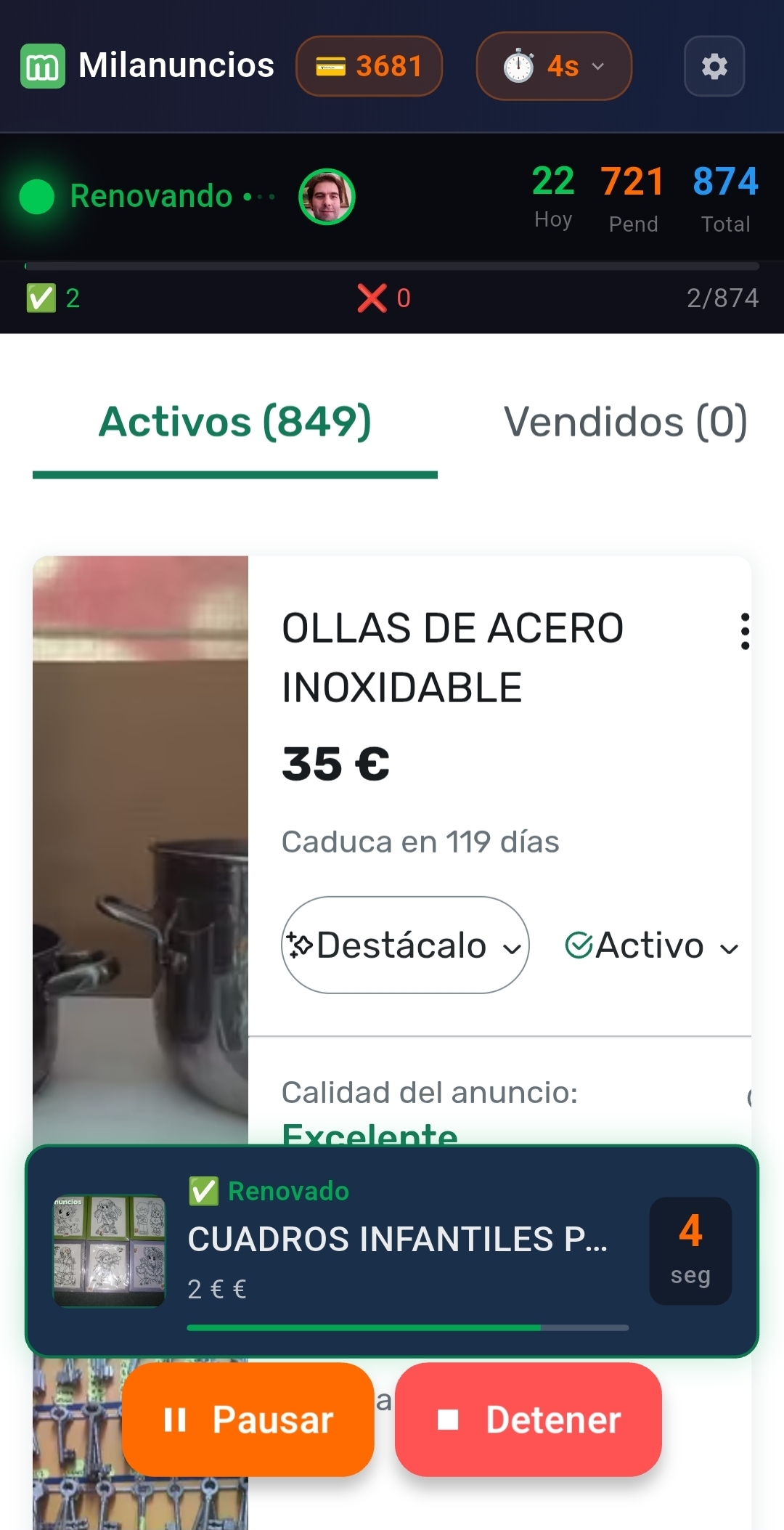
Overlay showing the renewed listing with countdown
- Current listing overlay: Shows the image, title, price, and status of the listing being renewed
- Progress bar: Indicates how many listings have been completed out of the total
- Time counter: Displays the configured delay between each listing
- Real-time statistics: In the header you will see Today (renewed today), Pending, and Total
The renewal overlay
The overlay changes colour depending on the result:
- 🟢 Green = Successfully renewed (✅ Renewed)
- 🟡 Yellow = In cooldown (⏳)
- 🔴 Red = Error (❌)
Pause and resume
You can pause the renewal at any time:
- Tap the yellow "PAUSE" button that appears during the renewal
- The app will pause after finishing the current listing
- To continue, tap the green "RESUME" button
Important
If you close the app while it is paused, you will lose your progress and will need to start over next time.
Stop the renewal
If you want to stop the process completely:
- Tap the red "STOP" button
- Confirm that you want to stop
- The renewal will stop and you will return to the initial state
Listings that have already been renewed will remain renewed. Only those still pending will be cancelled.
Adjust the renewal speed
You can configure the delay (wait time) between each listing using the slider displayed on the main panel.
- Low delay (3–5 seconds): Faster, but more aggressive
- Medium delay (10–15 seconds): Balance between speed and safety
- High delay (20–30 seconds): Slower, but better simulates a real user
Recommendation
We recommend using a delay of 10–15 seconds to avoid Milanuncios detecting automated behaviour.
Tips for better results
- Renew in the morning: Listings renewed early have greater visibility throughout the day
- Don't renew too frequently: Wait at least 4–6 hours between full renewal cycles
- Check cooldowns: If many listings are in cooldown, wait a little before trying again
- Use background mode: Enable background renewal so you can use other apps at the same time