
Notification types
MitikLive can send you different types of notifications:
Alerts you when all listings have been processed. Includes statistics: successes, cooldowns, and errors.
Your Milanuncios session has expired and you need to log in again.
An error has occurred that stopped the process. Open the app to see details.
Persistent notification showing progress while the app works in the background.
Configure notifications
Daily reminder
You can schedule a daily reminder so the app alerts you at a specific time to renew your listings:
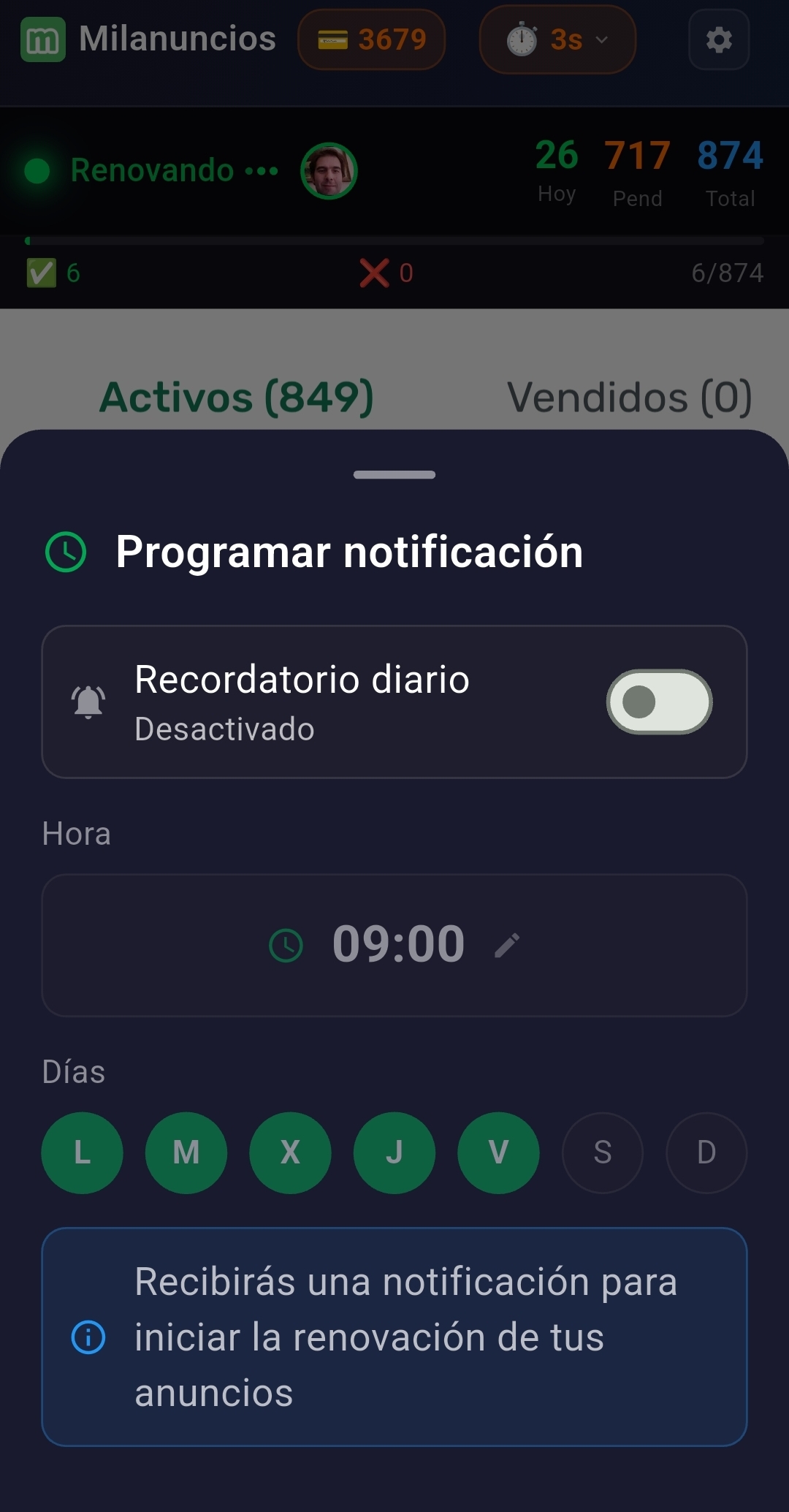
Daily reminder setup with time and days of the week
- Tap the clock ⏱️ icon in the app header
- Enable "Daily reminder"
- Select the time at which you want to receive the reminder
- Select the days of the week (Mon-Tue-Wed-Thu-Fri-Sat-Sun)
Enable/Disable notifications
- Open MitikLive
- Tap the settings ⚙️ icon
- Enable or disable "Notifications"
Enable/Disable sound
- In the same settings panel
- Enable or disable "Completion sound"
Note
The background service notification (the one showing progress) cannot be disabled. This is an Android requirement for apps that run in the background.
Notification permissions
On Android 13 and later, apps need explicit permission to send notifications. If you are not receiving notifications:
- Go to Android Settings → Apps → MitikLive
- Tap "Notifications"
- Enable "Allow notifications"
- Make sure the important channels are turned on
Do Not Disturb mode
If you have Do Not Disturb mode enabled, you may not receive MitikLive notifications. You can set up an exception:
- Go to Android Settings → Sound → Do Not Disturb
- Tap "Apps" or "Exceptions"
- Add MitikLive to the exceptions list
Tips
- 💡 If you renew at night, enable sound so you wake up when it finishes
- 💡 If you renew during the day, disable sound to avoid interruptions
- 💡 The service notification lets you check progress without opening the app
- 💡 You can pause/stop the renewal directly from the notification